Material Forge – Material & Shader Library Tool for Maya (Arnold)
Overview
Material Forge is a material asset library designed to store, reuse, and share material networks across multiple projects, artists, or studios.
Key Features:
Creates & Stores material networks as presets
Apply materials across multiple assets
Sharing materials becomes easy and hassle free
Maintain consistency across shots and projects
Software Used:
Autodesk Maya
Renderer: Solid-angle Arnold

Library Management
Working with Multiple Libraries
Artists can create multiple material libraries and switch between them easily. Each library maintains its own categories, tags, and renderer configurations.
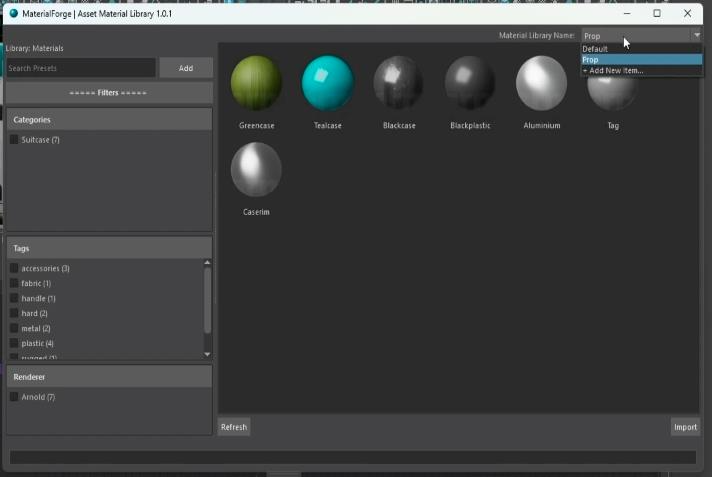
Adding Material Library using "+ Add New Item ..."

Importing Materials
Import Material
To import materials into the scene:
Select one or multiple materials in the library.
Right-click and choose Import Material.
This will import the selected material networks into the current scene.

Import and Assign Material
Materials can be imported and assigned to objects in a single step:
Select the target objects.
Select a single material from the library.
Right-click and choose Import and Assign Material.

Searching & Filtering Materials
Search Materials
A built-in search feature allows quick access to materials in large libraries.

Filter Materials
Materials can be filtered using:
Categories
Tags
Renderer types
Each filter includes its own search option, making it easy to manage extensive filter lists.

Adding Materials to the Library
Add Material
To add a material to the preset library:
Select the shading node in the scene.
Click Add in the MaterialForge UI.


Thumbnail Generation
After filling in the required parameters, pressing Add will render and generate a thumbnail for the selected material network.The Thumbnail option is enabled by default.

Managing Materials
Delete Material
To remove materials from the library:
Select one or multiple materials.
Right-click and choose Delete Material.

End of Walkthrough
This walkthrough covers the core workflow for managing, importing, and organizing materials using Material Forge.




Comments